For most of us, our WhatsApp chat history is a digital diary. That’s why WhatsApp’s backup feature is so crucial. In a major step for privacy, WhatsApp introduced end-to-end encrypted (E2EE) backups, a system designed to protect user data even from cloud providers and from WhatsApp itself. However, a subtle design flaw in the Android reinstallation process can lead you to accidentally make your own highly-secure backups permanently inaccessible.
If you are reinstalling WhatsApp on an Android phone, you need to be extremely careful at the permission-request stage. A single wrong tap can cost you your entire chat history.
The Scenario: Reinstalling WhatsApp
The problem occurs when you install WhatsApp on a new Android phone or reinstall it on your current one. During setup, WhatsApp relies on cloud partners like Google to store backup data.
The app correctly detects that you have an existing backup in Google Drive. To access and restore it, it needs permission to access your phone’s media. It presents you with a standard Android permission dialog for “Photos and Videos”.
(Image: A placeholder for the actual permission dialog screenshot)
This is the critical moment. You are given two choices: Allow or Don't allow.
The Hidden Danger of “Don’t Allow”
Intuitively, you might think, “Why does it need my photos right now? I just want to restore my text chats.” You might even deny the permission out of privacy concerns, assuming you can grant it later.
This is a trap. If you tap Don't allow, the setup process doesn’t stop or warn you. Instead,
it seamlessly continues. Behind the scenes, something catastrophic has just happened.
How WhatsApp’s E2EE Backups Are Designed to Work
To understand the severity of this issue, you must first understand how the E2EE backup system is designed to be incredibly secure. The entire system hinges on a single, unique key that you, and only you, can control.
Here’s the technical process as described by Meta:
A Unique, Random Key: When you first enable E2EE backups, your phone generates a unique, random encryption key. Your chat messages and media are encrypted with this key before being uploaded to Google Drive.
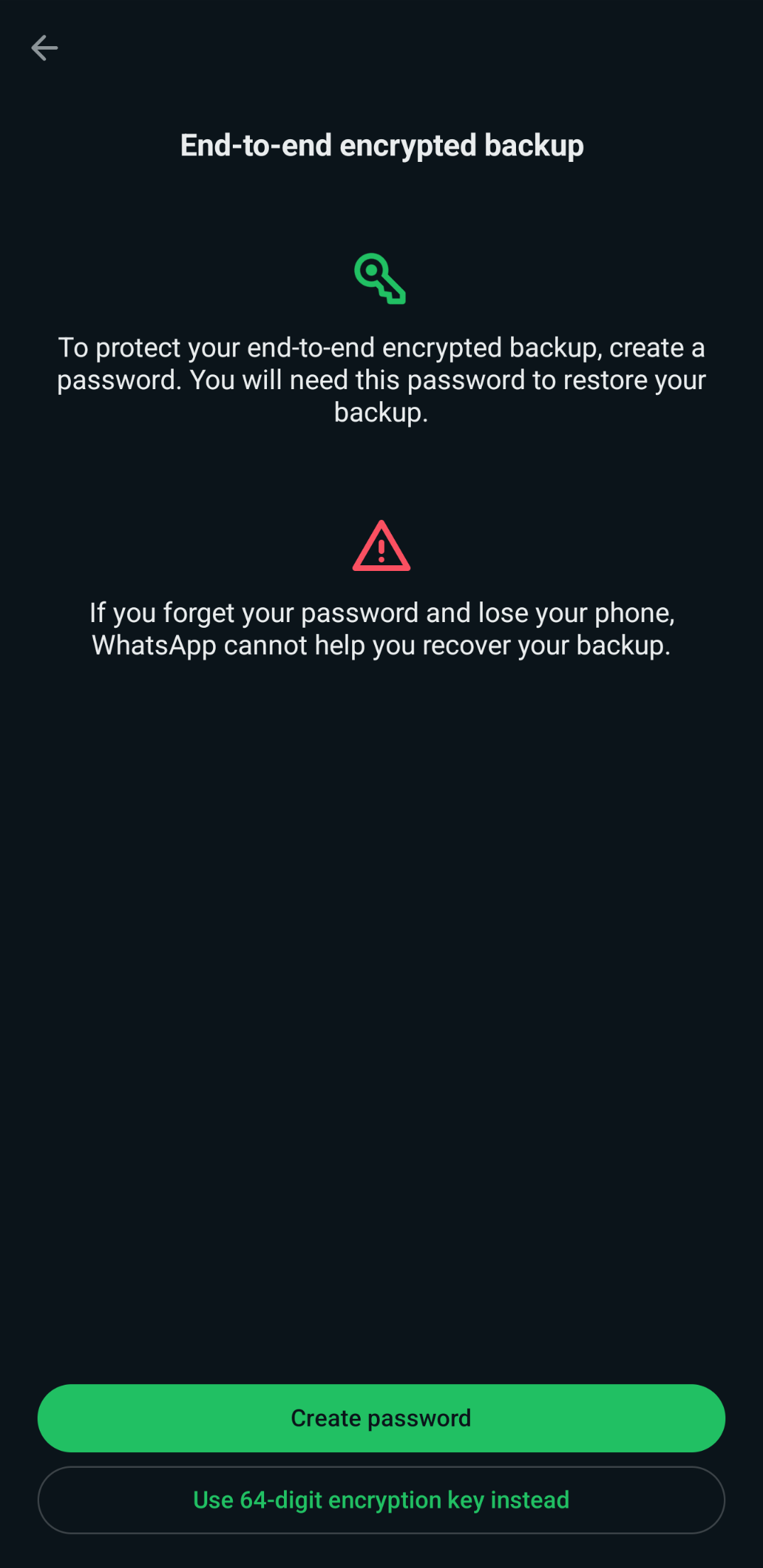
User-Controlled Key Storage: You have two options to save this vital key:
The error message shown when restore fails due to key rotation.
- Create a Password: You can protect the key with a password that you create. This password is used to retrieve your key from a secure HSM-based Backup Key Vault.
- Use a 64-Digit Key: Alternatively, you can opt to use the 64-digit encryption key directly. In this case, you are solely responsible for manually storing this key.
Zero-Knowledge System: The security promise is that no one but you can access the backup content—not WhatsApp, not Google, not Apple. The HSM-based Backup Key Vault is specifically designed to render the key permanently inaccessible after a limited number of unsuccessful attempts, protecting against brute-force attacks.
Where the Process Breaks Down
The security of this entire system hinges on control of that one unique encryption key.
When you reinstall WhatsApp and deny the “Photos and Videos” permission, you block the app from accessing your existing backup file in Google Drive. Instead of explaining that it cannot proceed, the app moves on as if it’s setting up backups for the first time.
In doing so, it generates a new, different encryption key on your device. The old key, which is the only thing that can decrypt your previous backup, is discarded and replaced.
The Irreversible Consequence
Once the old key is gone, your previous backup is useless. The high-security design of the system now works against you. If you lose your password or key, you cannot restore your backup.
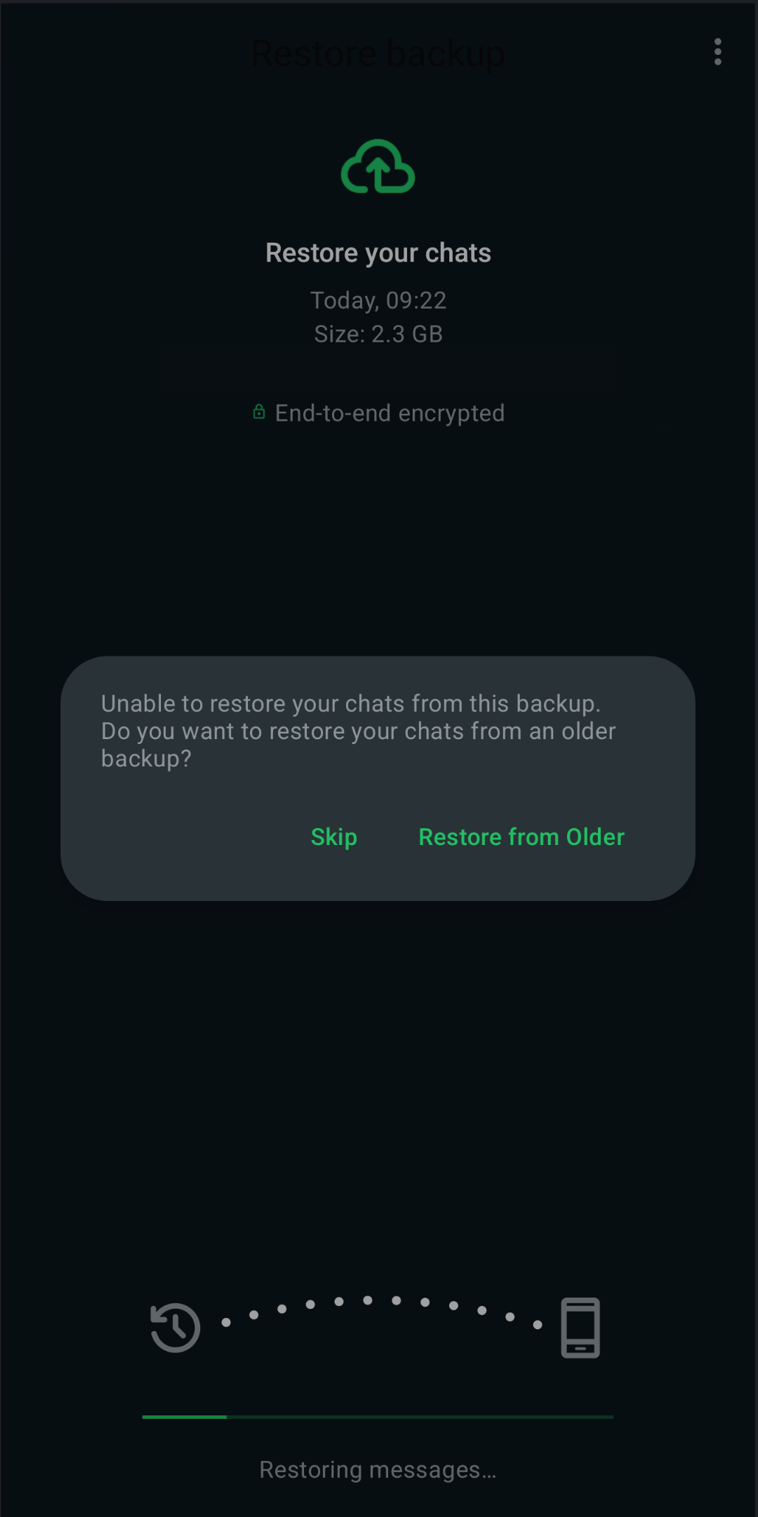
The error message shown when restore fails due to key rotation.
Crucially, WhatsApp cannot send you a copy of your password or key, reset it, or restore the backup for you. Because they never knew the key in the first place, they have nothing to recover. The data is permanently lost.
How to Safely Restore Your WhatsApp Backup
To avoid this permanent data loss, you must grant the storage permission when prompted during the initial setup.
- Install WhatsApp from the Play Store.
- Verify your phone number.
- When the “Restore backup” screen appears, tap Continue.
- When the Android permission dialog for “Photos and Videos” appears, you MUST tap
Allow. - Proceed with the restore process as prompted, providing your password or 64-digit key when asked.
A Call for a Better User Experience
This behavior is a significant design flaw. The catastrophic consequence of tapping Don't allow is
not communicated to the user. A simple warning dialog could prevent this irreversible data loss.
Until WhatsApp addresses this, be vigilant during setup—your chat history depends on it.
References
- Meta Engineering. (2021, September 10). How WhatsApp is enabling end-to-end encrypted backups. https://engineering.fb.com/2021/09/10/security/whatsapp-e2ee-backups/
- WhatsApp. Security of End-To-End Encrypted Backups. https://www.whatsapp.com/security/WhatsApp_Security_Encrypted_Backups_Whitepaper.pdf