For many laptop users, biometric authentication is one of those “set it and forget it” features that defines the modern computing experience. On my Thinkpad X1 Carbon, the fingerprint reader has been my primary method for Windows Hello until this past weekend, when it suddenly stopped working.
Instead of the usual quick scan, I was greeted with a prompt for my PIN. Digging into the settings, I found a frustrating situation: Windows had decided my once-trusted fingerprint reader was no longer secure enough.
The Culprit: KB5077181 and Enhanced Sign-in Security (ESS)
The issue may be related to KB5077181, a mandatory cumulative update released on February 10, 2026. While the update notes focused on AI improvements and Secure Boot certificates, it seems to include under-the-hood changes to support Windows Hello Enhanced Sign-in Security (ESS).
ESS is designed to protect biometric data by using Virtualization-Based Security (VBS) and Trusted Platform Module (TPM) 2.0 to create a “secure channel” between the biometric sensor and the OS. The goal is to prevent “replay attacks” where an attacker might try to spoof biometric data.
The problem? It appears that the latest update contains a bug that incorrectly flags modern hardware as incompatible with ESS. Despite my Thinkpad being a relatively new device that should be fully capable of supporting these security standards, the update seems to have triggered a false positive, leading Windows to treat the fingerprint reader as “not compatible with enhanced sign-in security.”
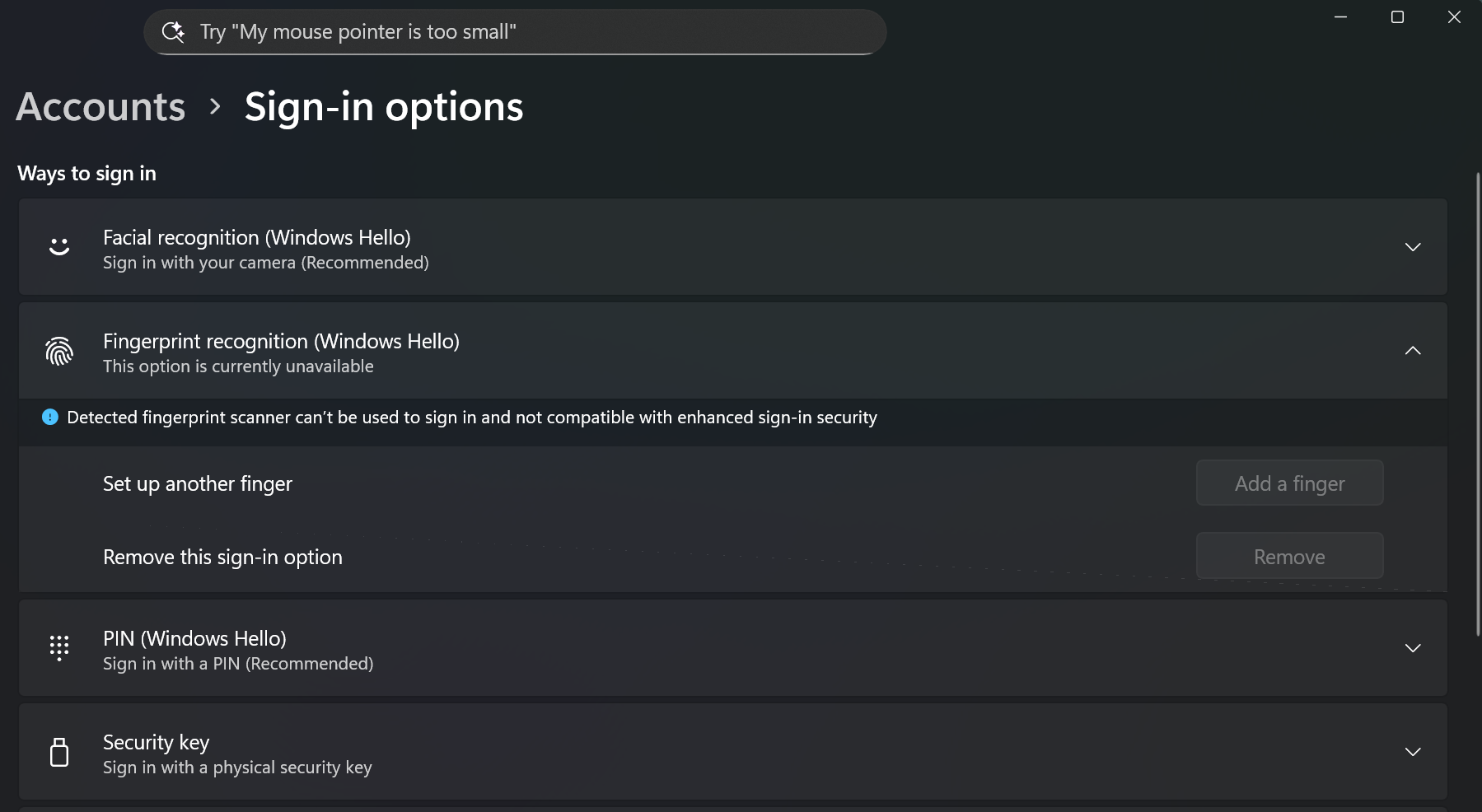
The error shown in Windows Settings.
Identifying the “Experiment”
What was strange was that the update had been installed for a week before the issue surfaced. This suggests that the change was “flag-guarded” meaning Microsoft enabled the feature remotely via an A/B test or a staggered rollout long after the code was actually on my machine.
To verify this, I turned to ViVETool, a community-created utility that allows users to view and toggle internal Windows feature flags.
By checking the state of feature flags, I identified flag 58988972 as the likely candidate.
This flag appears to guard changes introduced in the February update. On my machine, this flag was
set to “Enabled,” meaning I was part of the “experiment” that was breaking my hardware.
The Fix: Disabling the Flag
If you find yourself in the same boat, the fix is relatively straightforward but requires a bit of command-line work.
Prerequisites
- ViVETool: You can download the latest release from GitHub.
- Administrator Access: You’ll need to run these commands in an elevated prompt.
Step-by-Step Instructions
- Extract ViVETool: Download the ZIP and extract it to a folder
(e.g.,
C:\User\Michael\Downloads\vive). - Open Command Prompt as Admin: Right-click the Start button and select Terminal (Admin) or Command Prompt (Admin).
- Navigate to the folder:
cd C:\User\Michael\Downloads\vive - Disable the flag: Run the following command to disable the ESS experiment:If successful, you should see a message stating “Successfully set feature configuration.”
vivetool /disable /id:58988972 - Reboot: The changes won’t take effect until you restart your machine.
Conclusion
After a quick reboot, my fingerprint reader was immediately recognized by Windows Hello again, and I could sign in without typing in my PIN.
Enhanced Sign-in Security is a great step forward for Windows security, but bugs in the rollout of these features can be a nightmare for users when they cause perfectly capable hardware to be treated as incompatible. If your biometrics suddenly stop working after the February 2026 update, check your feature flags—you might just be an unwilling participant in a broken experiment.
References
- Microsoft Support. KB5077181: Windows 11 Cumulative Update.
- ViVETool GitHub Repository. https://github.com/thebookisclosed/ViVe
- Windows Hello Enhanced Sign-in Security Documentation. https://learn.microsoft.com/en-us/windows-hardware/design/device-experiences/windows-hello-enhanced-sign-in-security
- PureInfoTech. ViVETool IDs to enable hidden features on Windows 11. https://pureinfotech.com/vivetool-codes-enable-features-windows-11/